 Bal Sanskar Kendra
How to register
Everything you need to sign in, add your children, and enroll them for the coming year. It takes about five minutes, and you can do it all on your phone.
Before you start
- A Google account — any Gmail address will do.
- Your child's date of birth, and the school grade they are in this year.
- Your home address.
- A name and phone number for someone we can reach in an emergency.
- About five minutes. You can do all of it on your phone.
Payment happens at the very end, on the mandir's donation page — not inside this app.
I'm registering a child
Five steps, about five minutes. Start here if you are a parent or guardian.
I'm a teacher or volunteer
Three steps, so the Kendra can reach you. This path does not enroll a child.
Registering your child
Sign in with Google
Open bsk.gayatrigyanmandir.org and tap Continue with Google.
Google will then ask which account you want to use. Pick the one you want the Kendra to email about your child — that is where confirmations go. If you share a device with someone else in the family, this is the moment to check you are on your own account.
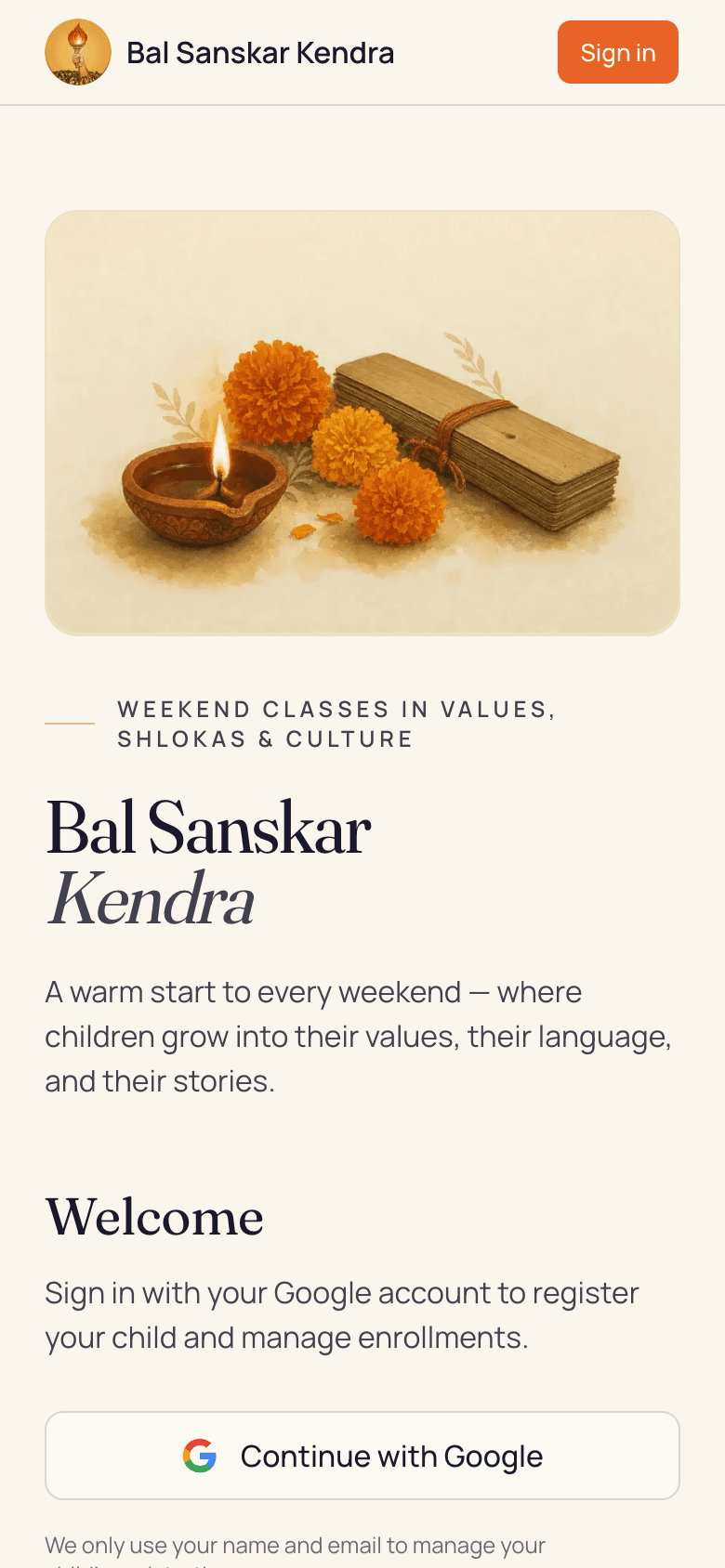
- 1Tap Continue with Google.
Tell us about your family
Your name and mobile number, your home address, and someone we can reach in an emergency.
You fill this in once. It is reused for every child you add, this year and in later years.
There is a small link at the bottom of this form for teachers and volunteers. If you are registering a child, do not use it — that path signs you up for announcements and enrolls nobody.
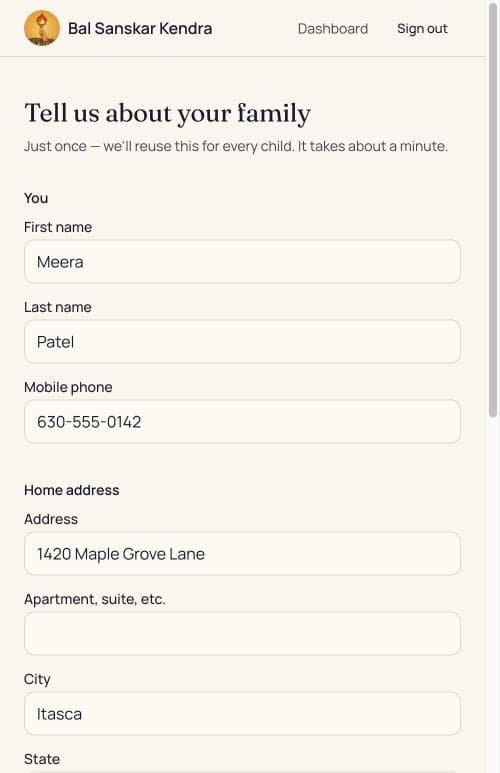
- 1Your name, as you would like it written.
- 2A mobile number we can reach you on.
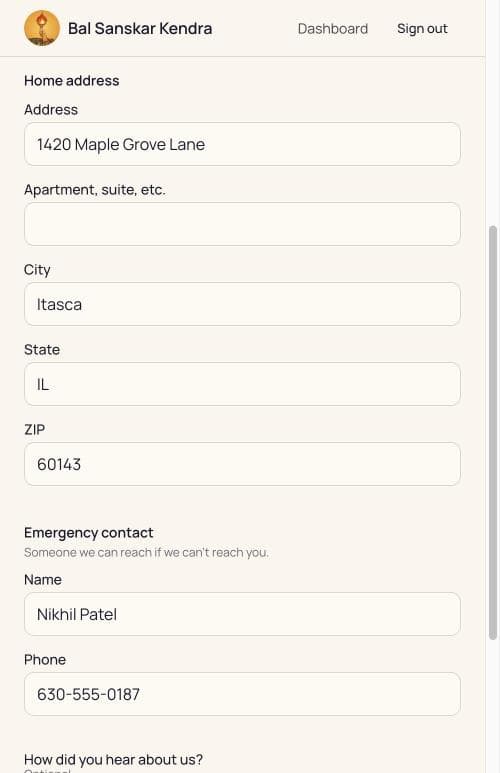
- 1Where you live.
- 2Someone we can call if we cannot reach you.
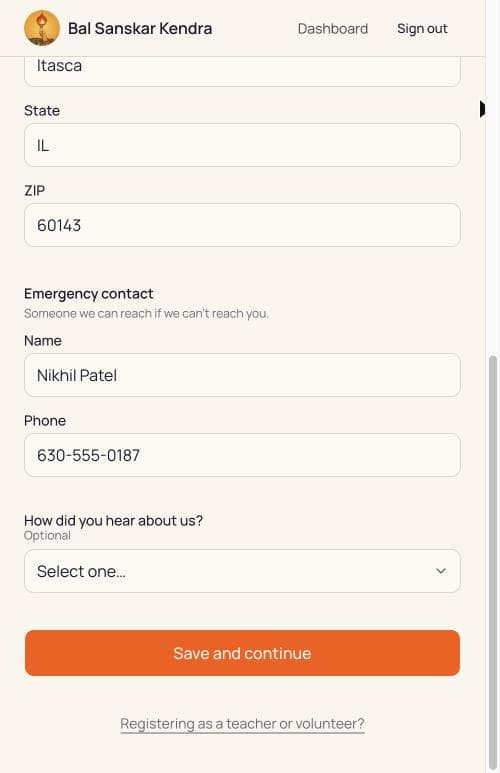
- 1Save and continue.
- 2Not this one — it is for teachers and volunteers.
Add your child
Their name, date of birth, the grade they are in this school year, the languages you speak at home, and anything a teacher should know about allergies or medical needs.
There is also a photo and media consent to tick if you are happy for their picture to appear in Kendra communications.
Have more than one child? Save this one, then use Add a child again. You will not be asked for your family details a second time.
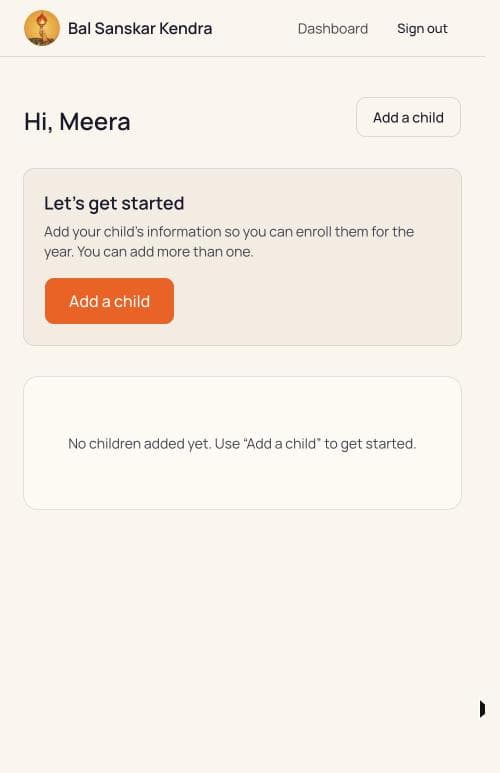
- 1Add a child.
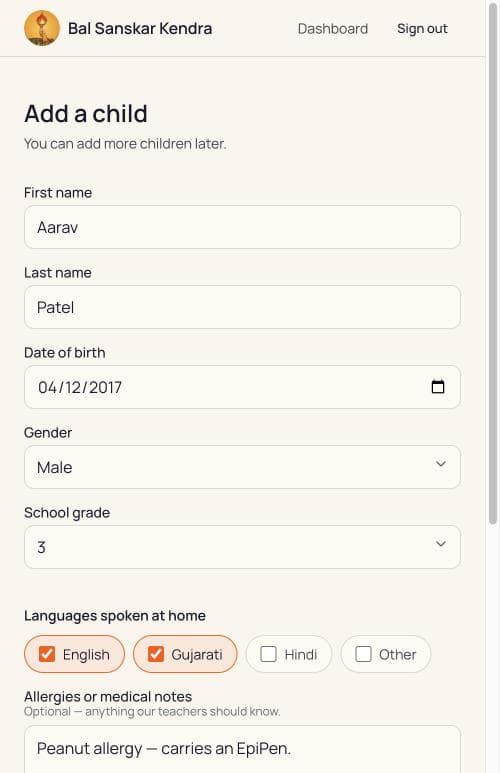
- 1Date of birth.
- 2The grade they are in this school year.
- 3Languages spoken at home — tap as many as apply.
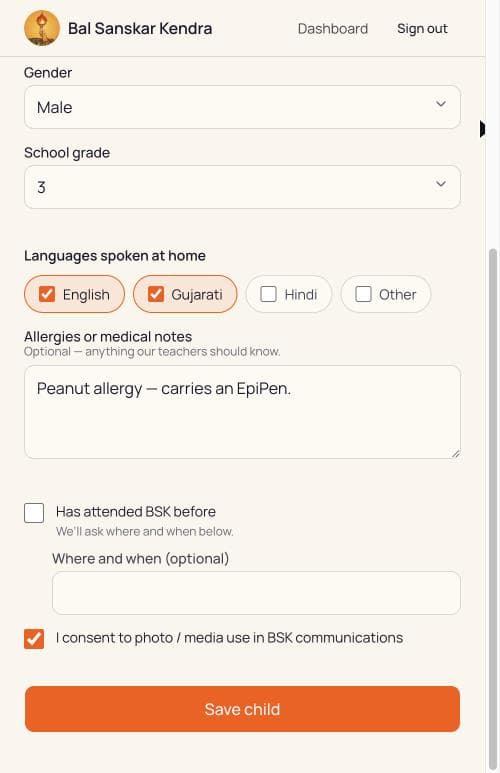
- 1Anything our teachers should know.
- 2Photo and media consent.
- 3Save child.
Enroll them for the year
Back on your dashboard, tap Enroll next to your child.
Confirm the grade, choose whether they will attend in person or virtually, and pick a Sanskar class — one is already selected for you based on the grade, and you can change it. A language class is optional.
Then read the Welcome Note, tick to say you agree, and sign with your name and the date.
Every child needs enrolling again for the new year, even one who came last year.
Hindi and Gujarati are taught in person only. If you choose Virtual, the language class section disappears — that is expected, not a fault.
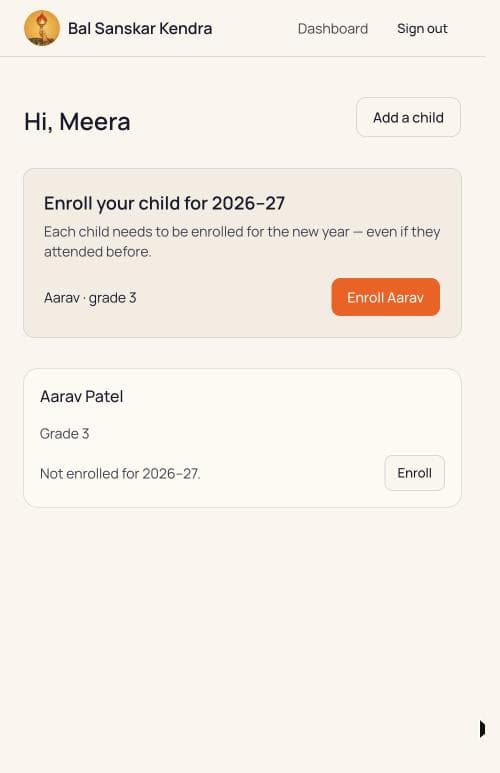
- 1Tap Enroll next to their name.
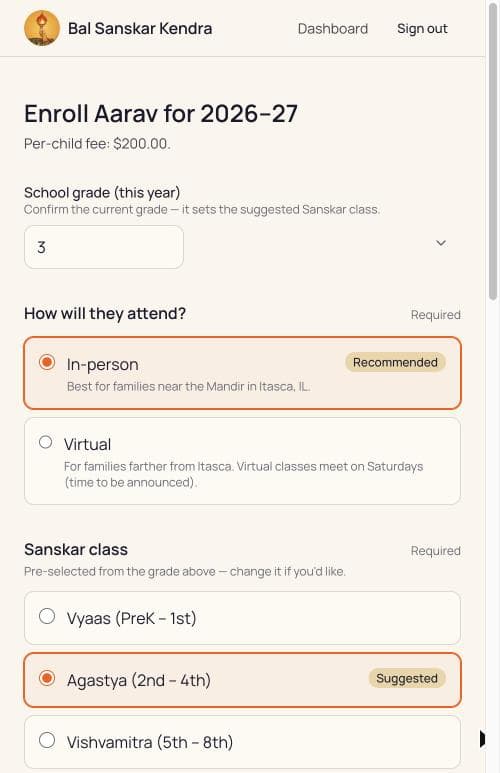
- 1Check the grade — it decides which class we suggest.
- 2In person, if you are near the Mandir in Itasca.
- 3Virtual, if you are farther away.
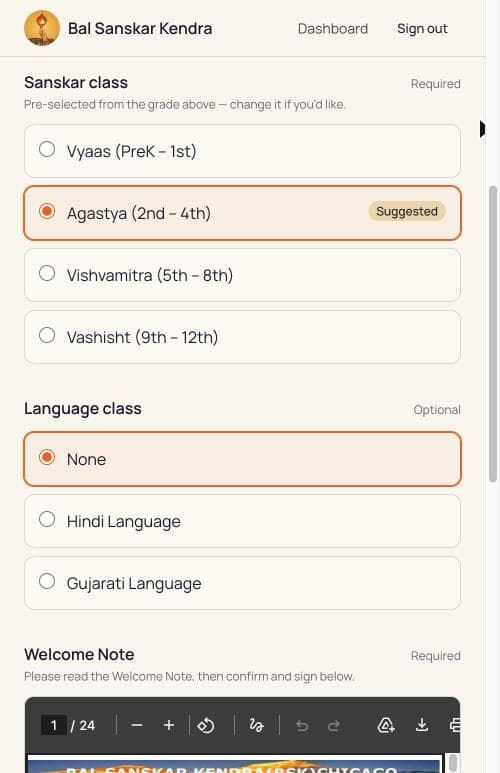
- 1Suggested from the grade. Change it if you prefer.
- 2A language class, if you would like one.
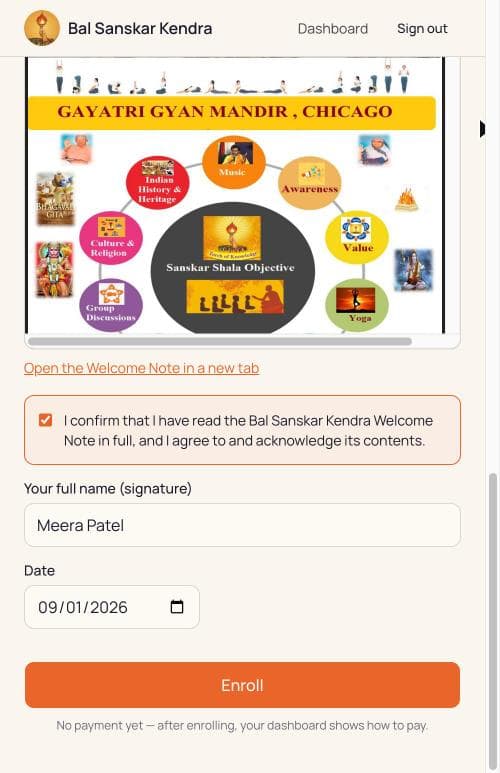
- 1Read the note, then tick to agree.
- 2Type your full name and the date.
- 3Enroll. No payment is taken on this screen.
Pay
Your dashboard now shows what is due — the fee for each child you enrolled — and a button through to the mandir donation page.
Put your full name in the memo. That is the only way a payment can be matched to your family.
A volunteer records payments by hand, so this will not update the moment you pay. Give it a few days. When it is done, your dashboard turns green and tells you that you are all set for the year.
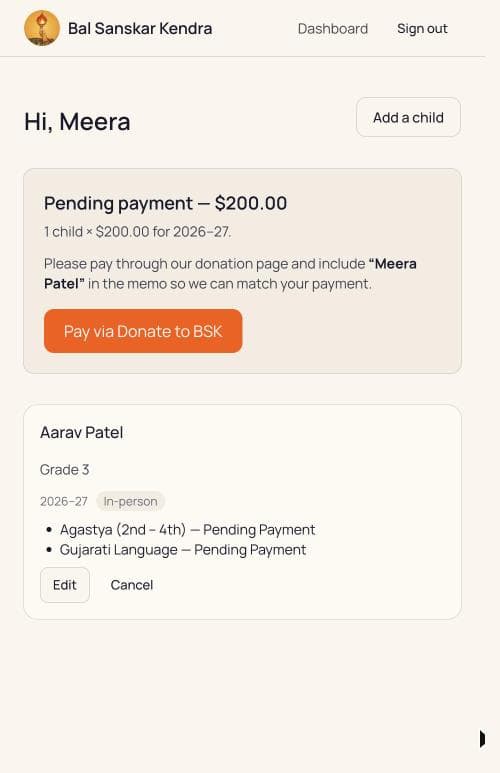
- 1What is due.
- 2Put this name in the memo when you pay.
- 3Go to the donation page.
Teachers and volunteers
This path tells the Kendra how to reach you. It does not enroll a child — if you are registering a child, follow the steps above instead.
Start by signing in
Open bsk.gayatrigyanmandir.org and tap Continue with Google, exactly as a parent would.
Take the teacher and volunteer link
You will land on a form headed "Tell us about your family". Do not fill it in.
At the very bottom is a small link: "Registering as a teacher or volunteer?" Tap that, then answer No when it asks whether you are registering a child.
- 1This link, right at the bottom.
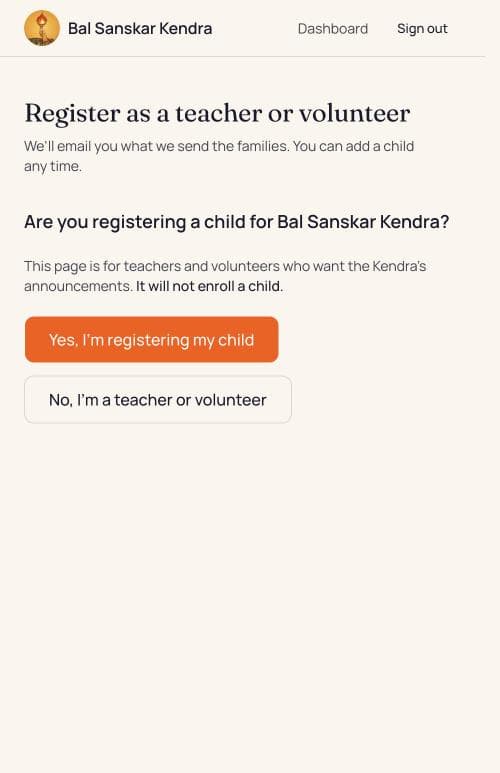
- 1Registering a child? Go back this way.
- 2Teacher or volunteer? Continue here.
Give your name and number
Your name, and a mobile number if you are happy to be reached about class coordination. Then Finish registering.
You will now receive what the Kendra sends the families.
Your dashboard will keep prompting you to add a child. That prompt is there on purpose — it catches parents who took this path by mistake. If you really are a teacher or volunteer, ignore it.
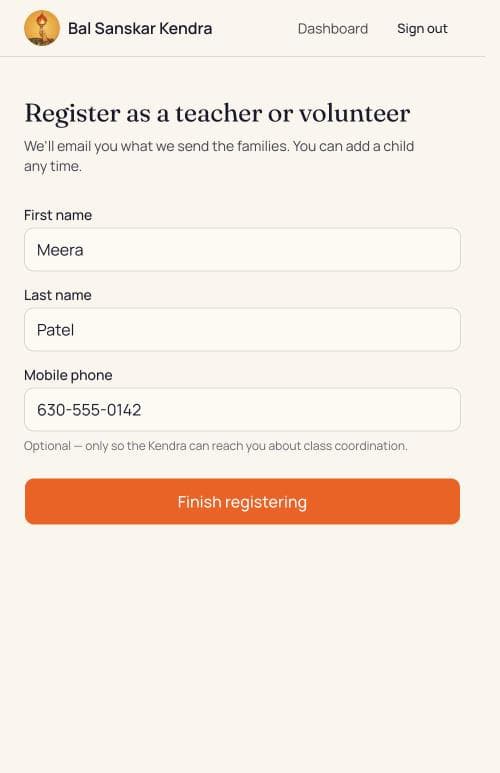
- 1Finish registering.
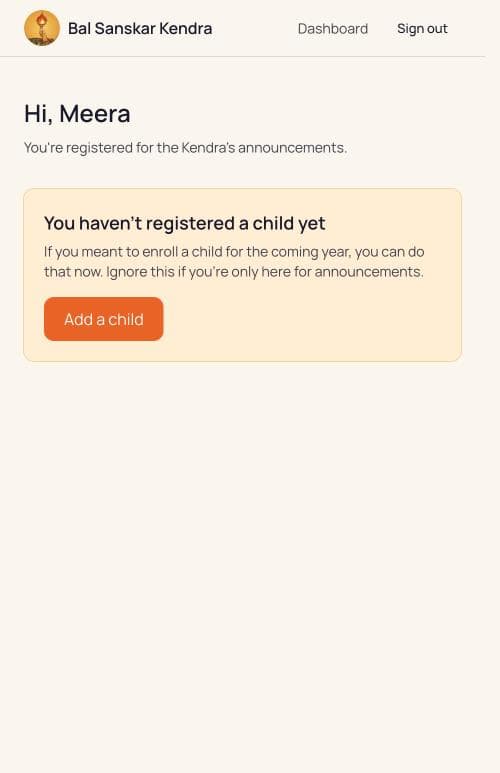
- 1Safe to ignore if you are not enrolling a child.
If something goes wrong
I signed in with the wrong Google account.
Tap Sign out at the top of the page, then sign in again. Google asks which account to use every time, so you can pick the right one.
I registered as a teacher or volunteer by mistake, and my child is not enrolled.
Nothing is broken and nothing is lost. Your dashboard shows a panel saying you have not registered a child yet — tap Add a child there and you will be taken to the family form to start properly.
My child is not showing on my dashboard.
Most often this means you are signed in with a different Google account from the one you used to add them. Sign out, sign back in, and choose the account you registered with. If they are still missing, call us.
The site says registration is not open.
Enrollment for the coming year has not been opened yet. There is nothing wrong with your account — check back later, or ask us when it opens.
How do I add a second child?
Use Add a child on your dashboard. Your family details are already saved, so you only fill in the child, then enroll them the same way as the first.
I need to change a class after paying.
Once a payment is recorded the enrollment is locked, so the class lists stay accurate. Call us and we will change it for you.
I paid, but it still says pending.
Payments are matched and recorded by a volunteer rather than automatically, so there is a delay of a few days. If it has been longer than that, call us — and check that your full name was in the memo.
I got an email I was not expecting.
We email you when a child is enrolled, when you sign the Welcome Note, and occasionally with Kendra announcements. If something looks wrong, call us rather than acting on the email.
Still stuck? Call Sandhyaben — 630-893-2317 — or email gayatri.gyan.us@gmail.com.